



Quickstart: first useful change
Open a workspace, configure a provider and model, run a small task, then review the result.
On this page
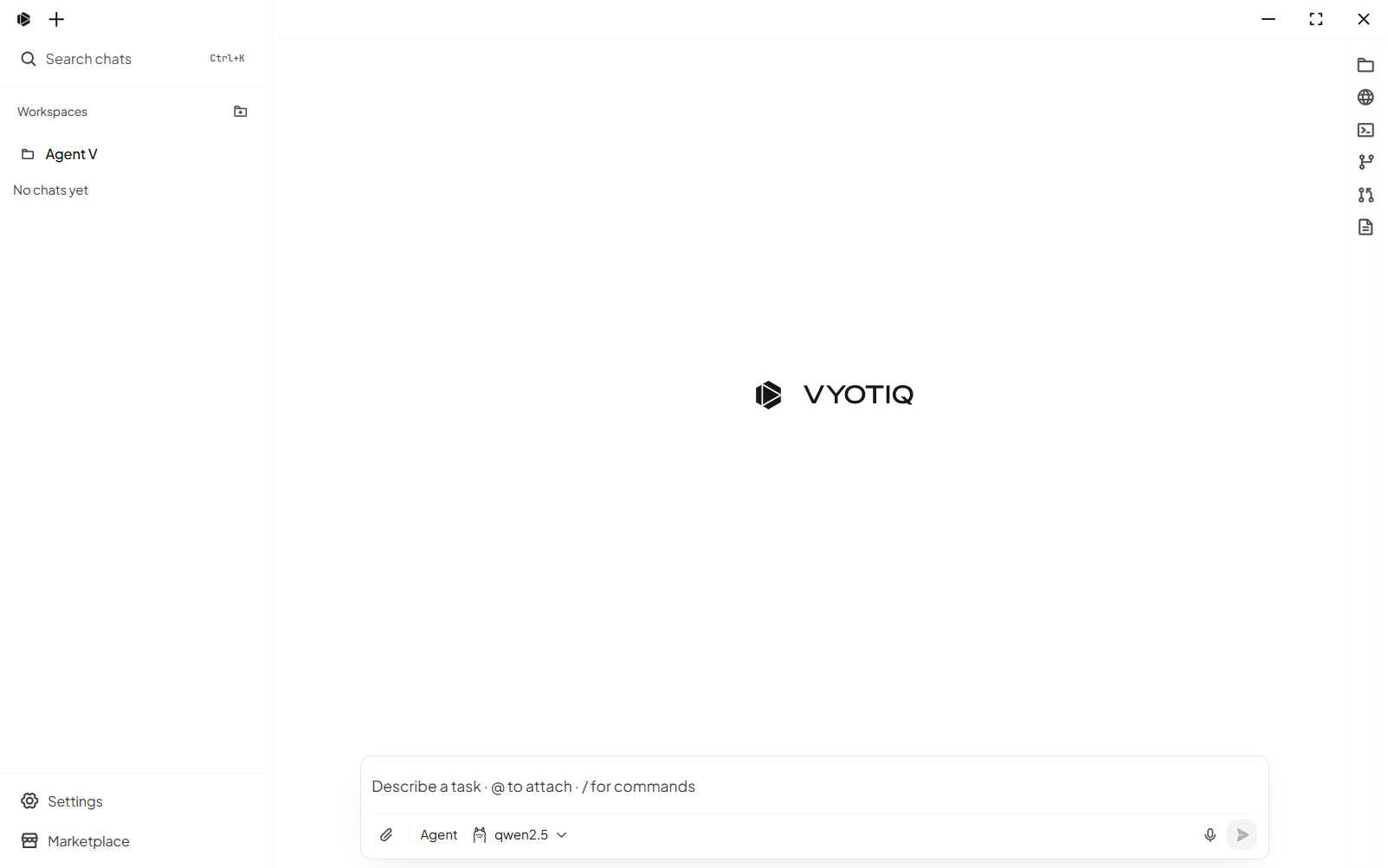
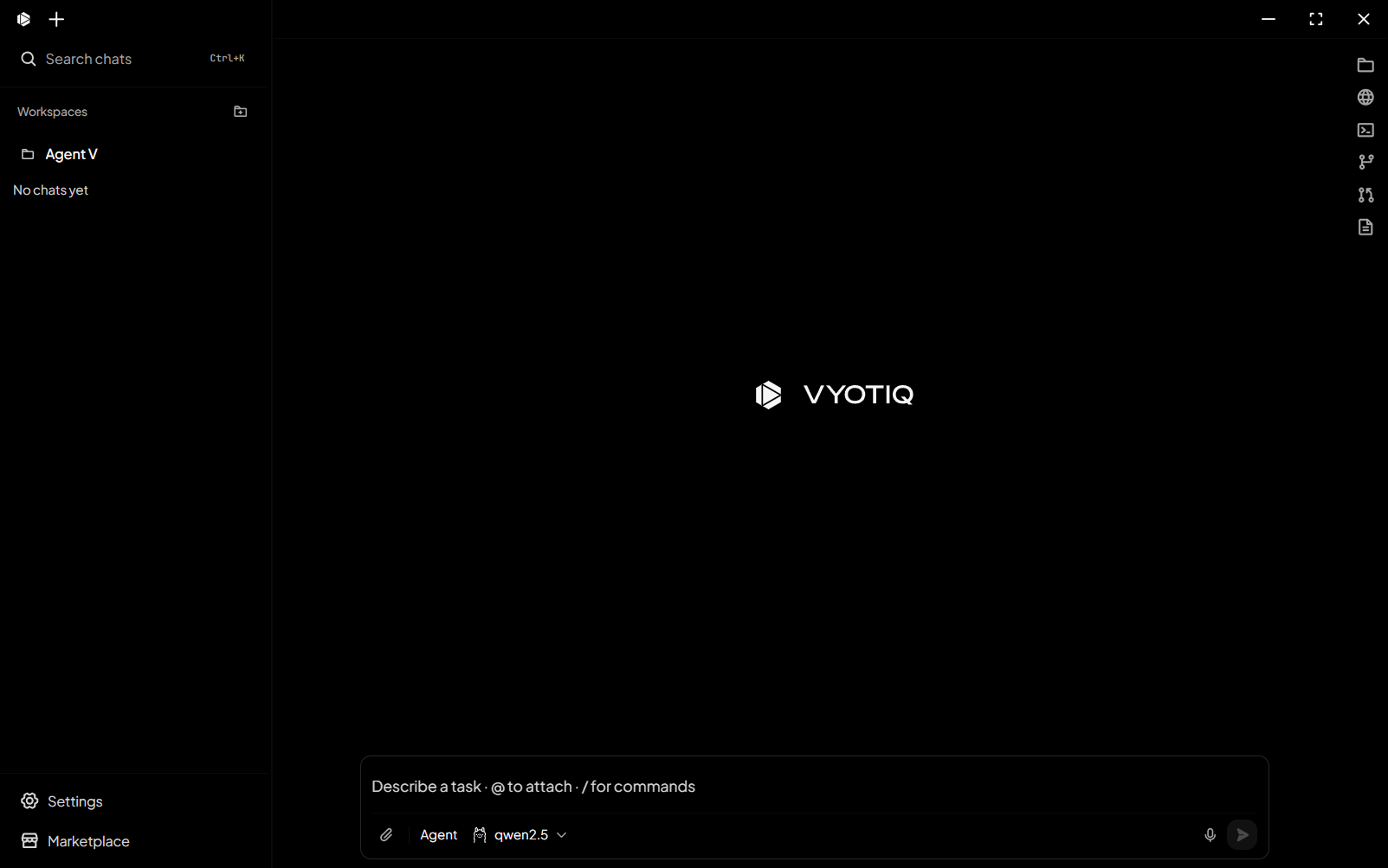
This path ends with one reviewed Agent run. Use a small, reversible task in a workspace you can inspect.
Prerequisites
- Agent V is installed.
- You have a project folder.
- You have either a cloud-provider key, local Ollama, or a private Custom OpenAI-compatible endpoint.
Open a workspace
Select Add workspace in the sidebar, or open Settings → General → Add workspace, then choose the project folder. Until a folder is selected, the composer shows Open a workspace to start chatting.
Workspaces open as tabs. A workspace Override can later pin a provider, model, thinking, compaction, and tool-approval settings to that folder.
Configure a provider
Open Settings → Providers.
- Expand a provider under API keys and save the required key. Keys are stored through the operating system’s secure storage.
- For local Ollama, confirm the Ollama base URL instead. A loopback or private Custom OpenAI-compatible host can also be keyless.
- Set Active provider. Saving a key does not make that provider active.
- Return to chat and choose a model in the composer. Use
Refresh modelswhen you need the live catalog.
New settings start with local Ollama active at http://127.0.0.1:11434 and the seed model qwen2.5. That is a selection, not proof that Ollama is installed or reachable. The Active provider menu and composer include configured providers and retain the current active provider so you can repair its configuration.
Choose Agent mode and send
Select Agent in the mode picker. A useful first prompt names the file, the requested behavior, and how to verify it:
Read the project README. Fix one inaccurate setup step, keep the surrounding style, and show me the exact change. Do not commit.Press Enter to send. Stop or Esc cancels a live run.
Set tool approval
The first send can open Tool approval:
- Off runs tools without asking.
- Mutating tools asks before edits, commands, and other mutations.
- All tools also asks before reads.
- Not now dismisses the dialog without changing the setting.
The same choices appear later in Settings → Tools as Off, Ask for edits and commands, and Ask for every tool.
Review the result
Read the assistant response and tool rows. Open Changes to inspect the working-tree diff. Keep accepts the checkpointed write state; Discard restores the corresponding checkpoint. Neither action creates a Git commit.
Verify the requested file and run the project check the task named. If the run was cut off, use Continue only after reading what completed. For provider, network, or recovery failures, follow Run, network, and recovery issues.